Keeping your email and notification settings up to date ensures you receive important account updates, security alerts, and relevant product information from hoo.be — while staying in control of what reaches you.
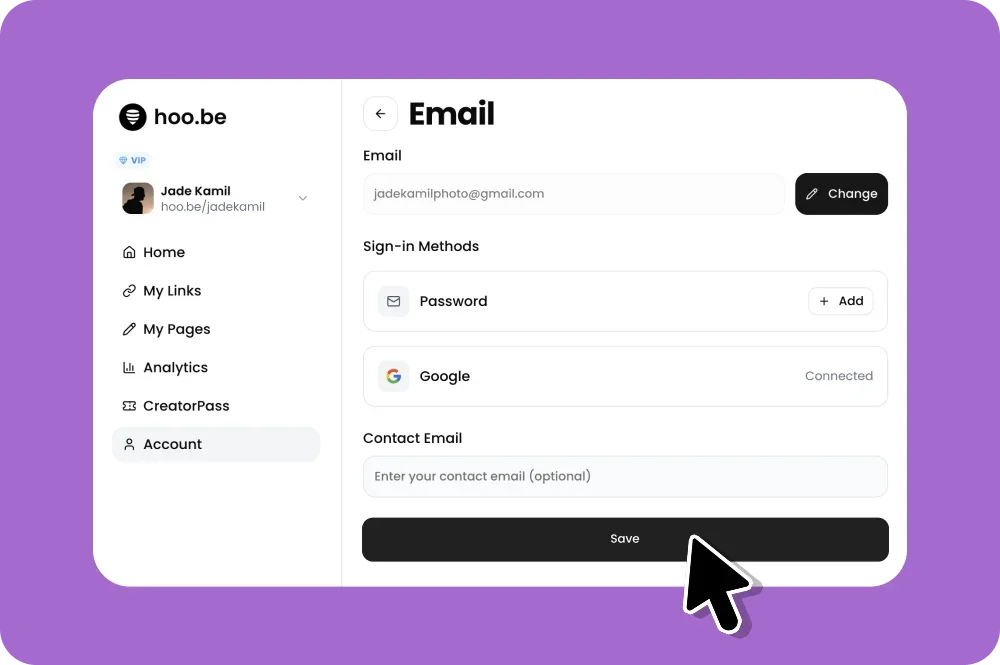
How to Update Your Email Address
Steps:
Log in to your hoo.be account at hoo.be/login
Click Account in the left-hand sidebar
Select Personal Info
Find the Email section and click Change
Enter your new email address
or connect via Google if preferred
Save your changes
Email Verification
After updating your email:
Check your new email inbox
Click the verification link sent by hoo.be
Your email will be confirmed and fully updated
You’ll begin receiving notifications at your new address once verification is complete.
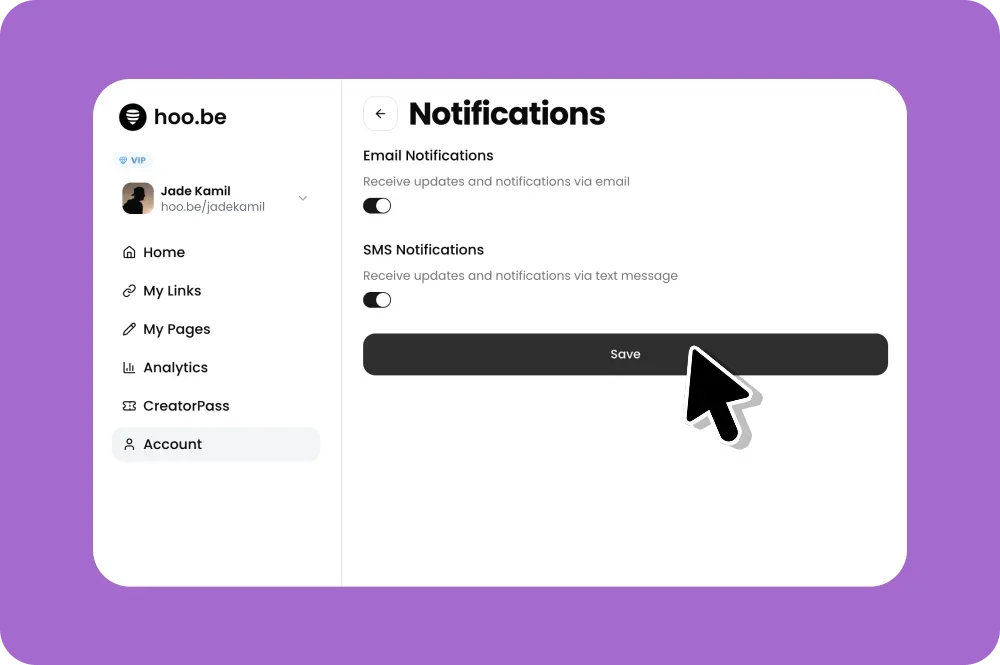
How to Manage Notification Preferences
Steps:
Go to Account
Click Notifications
Toggle your notification preferences:
Email notifications
SMS notifications
Save your changes
Notification Types
Email: Account updates, Creatorpass opportunities, product updates, and security alerts
SMS: Time-sensitive notifications and important account messages (if enabled)
Best Practices
Keep your email address current and verified
Enable notifications for important updates and security alerts
Use SMS notifications only for messages you want immediately
Review your notification settings periodically
FAQs
Why do I need to verify my email?
Verification helps keep your account secure and ensures you receive important communications.
Can I turn off notifications?
Yes. You can toggle Email and SMS notifications on or off at any time.
Need Help?
If you need help or have questions:
Email hi@hoo.be
Or reply to any support email and our team will get back to you.